Guides
How to See Your Apple Music Stats (All Year, Not Just at Replay)
Where to find your Apple Music stats on iPhone and Mac: Replay's monthly view, play counts in the Mac Music app, your Apple data export, and on-device stats apps, plus what each one misses.

Quick answer
To see your Apple Music stats, open the Music app, go to Home and scroll to Replay: Your Top Music, or visit replay.music.apple.com. Replay shows your top songs, artists and albums for the year and month by month. For play counts, use the Mac Music app's Plays column or an on-device stats app.
Where Apple Music keeps your stats#
Spotify listeners get Wrapped and a steady stream of third-party stats sites. Apple Music keeps things quieter, so a lot of people assume there's nothing to see until the year-end recap. There's more than you'd think. It's just spread across four places, and each one answers a different question.
| Where | What you get | Time ranges | Best for |
|---|---|---|---|
| Replay (Music app or web) | Top songs, artists, albums, genres, playlists and stations, listening time, milestones | This year, plus month by month | A quick "what have I been playing?" |
| Music app on Mac | A Plays count for every song in your library | All time, per song | Exact play counts you can sort |
| Apple data export | Your raw listening activity as spreadsheet files | Whatever Apple has on file | Digging through the full history yourself |
| On-device stats app | Rankings, charts and trends from your iPhone library | All time, plus weeks and months as the app records them | Checking in any day, all year |
None of them is the full picture on its own. Replay is the easiest. The Mac gives the most precise per-song numbers. An iPhone stats app is the only one built to give you week-by-week trends whenever you want them.
How to see your Apple Music stats on iPhone, step by step#
Replay is Apple's own stats page. Since iOS 26 it's a native part of the Music app rather than a web page shown inside it (MacRumors), so it's quicker to get to than it used to be.
- Turn on listening history. Go to Settings > Apps > Music and make sure Use Listening History is on. Apple says Replay won't appear if it's off on any of your devices (Apple Support).
- Update your iPhone. Apple asks for the latest version of iOS before Replay shows up in the Music app.
- Open the Music app and tap Home. Scroll down to Replay: Your Top Music.
- Tap "Go back in time." You'll see your top songs, artists and albums for the year so far, with play counts and time listened.
- Switch to a single month. Replay can be broken down by month, which is the closest Apple Music gets to a monthly Wrapped.
- Add the Replay playlist to your library. It collects your most-played songs of the year and Apple updates it weekly.
On a computer or an Android phone, the same stats are at replay.music.apple.com. Sign in with the Apple Account you use for your Apple Music subscription.
What Replay doesn't show you#
Replay is good at one thing: your top music this year and this month. It isn't a full stats dashboard, and a few gaps send people looking elsewhere.
- No per-song history. You can see that a song is in your top 10, but not the week you couldn't stop replaying it.
- Calendar years only. You get this year, its months, and the year-end recap. There's no "last 7 days" or "since I got this phone".
- It needs enough listening. Light listeners and new subscribers can wait a while before anything appears.
- It only covers your Apple Music listening history. If listening history was off for part of the year, those plays won't be in it.
Replay tells you what you played most. It doesn't tell you how your listening changed.
None of this is a flaw so much as a design choice. Replay is a highlight reel, and the year-end edition is built for sharing. If you want to watch your habits week by week, you need one of the other options.
How to see play counts in the Music app on Mac#
If you have a Mac, it's the best place for exact numbers. The Music app keeps a play count for every song in your library and lets you sort by it.
- Open the Music app and choose Songs in the sidebar.
- Choose View > Show View Options and turn on the Plays column (Apple's Music for Mac guide explains view options and sorting).
- Click the Plays column heading to sort, then click again so the highest counts are on top.
This gives you an all-time play count for each song, which Replay never does. It doesn't give you dates, so you can't tell whether those 300 plays happened last month or across five years. The iPhone Music app doesn't show this column at all.
How to download your full Apple Music history#
For the full raw history, Apple lets you request a copy of the data linked to your Apple Account at privacy.apple.com (Apple Support). Sign in, choose Request a copy of your data, and select Apple Media Services information. That's the category with your listening history: the export has an "Apple Music Activity" folder with a play activity file inside (9to5Mac's walkthrough). Apple has renamed files in the export over the years, so the exact name may differ.
The export isn't instant, and what you get is a set of spreadsheet files, not charts. It suits people who like building their own pivot tables. For everyone else it's a lot of rows.
Use an on-device stats app for stats all year#
The fourth option is an iPhone app that reads your music library directly. iOS keeps a play count for the songs in your library (Apple Developer documentation), and with your permission an app can rank your songs, artists, albums and genres from those counts the moment you open it.
What iOS doesn't give apps is the history behind those counts: when each play happened. So a good stats app records from the day you install it. Rankings from everything your iPhone has counted since you set it up work straight away, and weekly and monthly views fill in as the app collects data. Earhog, for example, unlocks weekly stats after 7 days, monthly after 30 and yearly after 365.
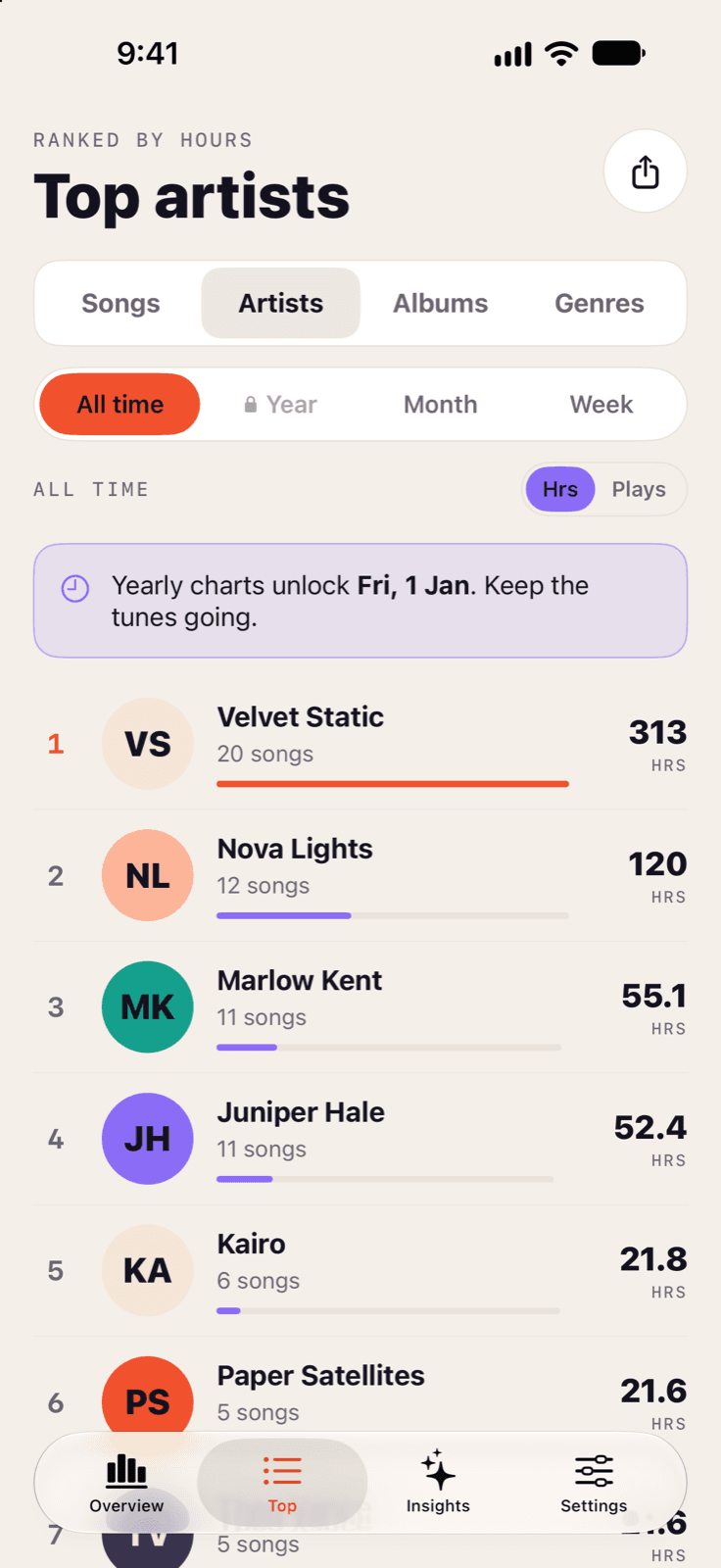
When you're choosing one, a few things matter more than the feature list:
- Where your stats are calculated. On the device is best. If an app needs you to sign in or upload your history, your listening data is leaving your phone.
- Whether it needs an account. A stats app has no real reason to know your email address.
- What happens when you change phones. Look for iCloud sync, or your history starts over with your new iPhone.
Earhog works that way: stats are worked out on your iPhone, there's no account, and your history can sync to your own iCloud if you turn it on.
Mistakes to avoid#
- Leaving listening history off. It's a common reason Replay looks empty or wrong. Check it on every device you listen on, including a Mac or iPad.
- Waiting until December. Replay's monthly view and an on-device app both work during the year. If you want to remember what this summer sounded like, look now.
- Expecting an app to see years of past plays. No app can recover dated play history that iOS never stored. Install early if you want week-by-week charts for next year.
- Comparing Replay with play counts directly. Replay ranks your Apple Music listening for the year. The Mac's Plays column counts every play of a library song, ever. They answer different questions, so the numbers won't match.
- Handing your history to an app that uploads it. Stats about your listening are personal. Prefer tools that keep them on your device.
The short version#
Use Replay for a monthly snapshot of the year, the Mac Music app for exact play counts, and the privacy export if you want every row. If you want Spotify-Wrapped-style stats you can check any week of the year, pair Replay with an iPhone app that keeps your stats on the device.
Frequently asked questions#
Can I see my Apple Music stats before Replay comes out?
Yes. Replay isn't only a year-end recap. Once you've listened enough, it shows your top songs, artists and albums for the year so far and month by month, in the Music app (Home, then Replay: Your Top Music) or at replay.music.apple.com.
Why is my Apple Music Replay not showing up?
The usual causes are that Use Listening History is off on one of your devices, that you haven't played enough music yet this year, or that your iPhone needs a software update. On iPhone, check Settings > Apps > Music and turn on Use Listening History.
Does Apple Music have a Wrapped like Spotify?
Apple Music's version is called Replay. It ranks your top songs, artists, albums, genres, playlists and stations, shows your listening time, and comes with a Replay playlist that updates weekly. The full year in review arrives at the end of the calendar year.
How do I see how many times I've played a song on Apple Music?
On a Mac, open the Music app, switch to the Songs view, choose View > Show View Options and turn on the Plays column. The Music app on iPhone doesn't show a play count for each song, so on iPhone you need Replay's top lists or a stats app.
How do I see my total Apple Music listening time?
Replay shows your total time listened for the year, along with play counts for your top songs, artists and albums. For a running total you can check any day, use an iPhone stats app that reads your library on the device.
Is Apple Music Replay updated every week?
Apple says the Replay playlist for the current year is updated weekly. Your stats are also broken down by month, so you can check in during the year instead of waiting for December.
Are Apple Music stats apps safe to use?
Look for an app that works out your stats on the iPhone itself, doesn't need an account, and has an App Store privacy label you're comfortable with. Apps that ask you to sign in or upload your history send your listening data to someone else's server.
Last updated
About Earhog
Earhog is a free iPhone app that shows your Apple Music listening stats: top songs, artists, albums and genres, play history charts, Earful recaps of any week, month or year, insights, Home Screen widgets and share cards. Stats are worked out on your iPhone, with no account or sign-up, and your listening never reaches Earhog's servers. Stats start from the play counts your iPhone has kept since it was set up, and Earhog records day by day from install. To see the years before, including plays from older iPhones, import the data download Apple provides at privacy.apple.com; it's read on the iPhone and never uploaded. Learn more about Earhog.